



A Month with Apple's Fusion Drive
by Anand Lal Shimpi on January 18, 2013 9:30 AM EST- Posted in
- Storage
- Mac
- SSDs
- Apple
- SSD Caching
- Fusion Drive
Fusion Drive: Under the Hood
I took the 27-inch iMac out of the box and immediately went to work on Fusion Drive testing. I started filling the drive with a 128KB sequential write pass (queue depth of 1). Using iStat Menus 4 to actively monitor the state of both drives I noticed that only the SSD was receiving this initial write pass. The SSD was being written to at 322MB/s with no activity on the HDD.
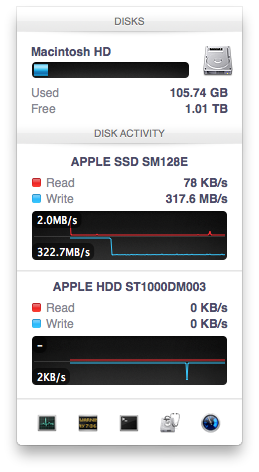
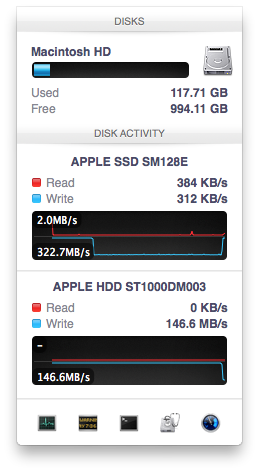
After 117GB of writes the HDD took over, at speeds of roughly 133 - 175MB/s to begin with.
The initial test just confirmed that Fusion Drive is indeed spanning the capacity of both drives. The first 117GB ended up on the SSD and the remaining 1TB of writes went directly to the HDD. It also gave me the first indication of priority: Fusion Drive will try to write to the SSD first, assuming there's sufficient free space (more on this later).
Next up, I wanted to test random IO as this is ultimately where SSDs trump hard drives in performance and typically where SSD caching or hybrid hard drives fall short. I first tried the worst case scenario, a random write test that would span all logical block addresses. Given that the total capacity of the Fusion Drive is 1.1TB, how this test was handled would tell me a lot about how Apple maps LBAs (Logical Block Addresses) between the two drives.
The results were interesting and not unexpected. Both the SSD and HDD saw write activity, with more IOs obviously hitting the hard drive (which consumes a larger percentage of all available LBAs). The average 4KB (QD16) random write performance was around 0.51MB/s, it was constrained by the hard drive portion of the Fusion Drive setup.
After stopping the random write task however, there was immediate moving of data between the HDD and SSD. Since the LBAs were chosen at random, it's possible that some (identical or just spatially similar) addresses were picked more than once and those blocks were immediately marked for promotion to the SSD. This was my first experience with the Fusion Drive actively moving data between drives.
A full span random write test is a bit unfair for a consumer SSD, much less a hybrid SSD/HDD setup with roughly an 1:8 ratio of LBAs. To get an idea of how good Fusion Drive is at dealing with random IO I constrained the random write test to the first 8GB of LBAs.
The resulting performance was quite different. For the first pass, average performance was roughly 7 - 9MB/s, with most of the IO hitting the SSD and a smaller portion hitting the hard drive. After the 3 minute test, I waited while the Fusion Drive moved data around, then repeated it. For the second run, total performance jumped up to 21.9MB/s with more of the IO being moved to the SSD although the hard drive was still seeing writes.
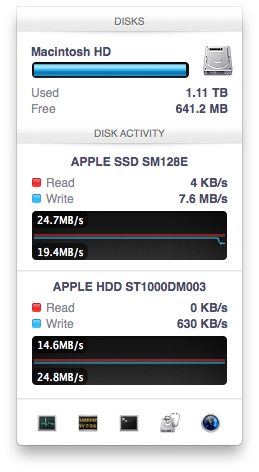
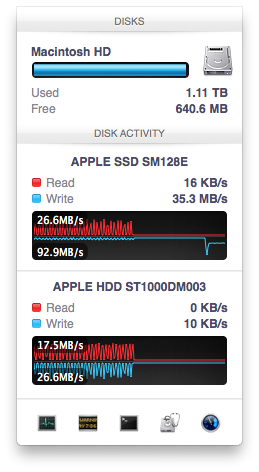
In the shot to the left, most random writes are hitting the SSD but some are still going to the HDD, after some moving of data and remapping of LBAs nearly all random writes go to the SSD and performance is much higher
On the third attempt, nearly all random writes went to the SSD with performance peaking at 98MB/s and dropping to a minimum of 35MB/s as the SSD got more fragmented. This told me that Apple seems to dynamically map LBAs to the SSD based on frequency of access, a very pro-active approach to ensuring high performance. Ultimately this is a big difference between standard SSD caches and what Fusion Drive appears to be doing. Most SSD caches seem to work based on frequency of read access, whereas Fusion Drive appears to (at least partially) take into account what LBAs are frequently targeted for writes and mapping those to the SSD.
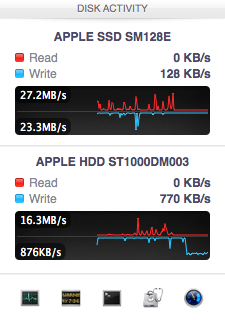
Note that subsequent random write tests produced very different results. As I filled up the Fusion Drive with more data and applications (~80% full of real data and applications), I never saw random write performance reach these levels again. After each run I'd see short periods where data would move around, but random IO hit the Fusion Drive in around an 7:1 ratio of HDD to SSD accesses. Given the capacity difference between the drives, this ratio makes a lot of sense. If you have a workload that is composed of a lot of random writes that span all available space, Fusion Drive isn't for you. Given that most such workloads are confined to the enterprise space, that shouldn't really be a concern here.


 Facebook
 Twitter
 RSS
RSS


127 Comments
View All Comments
BrooksT - Friday, January 18, 2013 - link
Excellent point and insight.I'm 40+ years old; I still know x86 assembly language and use Ethernet and IP protocol analyzers frequently. I'm fluent in god-knows how many programming languages and build my own desktops. I know perfectly well how to manage storage.
But why would I *want* to? I have a demanding day job in the technology field. I have a couple of hobbies outside of computers and am just generally very, very busy. If I can pay Apple (or anyone) a few hundred bucks to get 90% of the benefit I'd see from spending several hours a year doing this... why in the world would I want to do it myself?
The intersection of people who have the technical knowledge to manage their own SSD/HD setup, people who have the time to do it, and people who have the interest in doing it is *incredibly* tiny. Probably every single one of them is in this thread :)
Death666Angel - Friday, January 18, 2013 - link
I wonder how you organize stuff right now? Even before I had more than one HDD I still had multiple partitions (one for system and one for media at the time), so that I could reinstall windows without having my media touched. And that media partition was segregated into photos, music, movies, documents etc. That is how I organize my files and know where what is located.I don't see any change to my behaviour with an SSD functioning as my system partition and the HDDs functioning as media partitions.
Do people just put everything on the desktop? How do you find anything? I just don't understand this at all.
KitsuneKnight - Friday, January 18, 2013 - link
Do you not have any type of file that's both large, numerous, and demands high performance?I regularly work with Virtual Machines, with each of them usually being around 10 Gb (some being as small as 2, with the largest closer to 60). I have far too many to fit on my machine's SSD, but they're also /far/ faster when run from it.
So what do I have to do? I have to break my nice, clean hierarchy. I have a folder both on my SSD and on my eSATA RAID for them. The ones I'm actively working with the most I keep on the SSD, and the ones I'm not actively using on the HDD. Which means I also have to regularly move the VMs between the disks. This is /far/ from an ideal situation. It means I never know /exactly/ where any given VM is at any given moment.
On the other hand, it sounds like a Fusion Drive set up could handle the situation far better. If I hadn't worked with a VM in a while, there would be an initial slowdown, but eventually the most used parts would be promoted to the SSD (how fast depend on implementation details), resulting in very fast access. Also, since it isn't on a per-file level, the parts of the VM's drive that are rarely/never accessed won't be wasting space on the SSD... potentially allowing me to store more VMs on the SSD at any given moment, resulting in better performance.
So I have potentially better performance over all (either way, I doubt it's too far from a manual set up), zero maintenance overhead of shuffling files around, and not having to destroy my clean hierarchy (symlinks would mean more work for me and potentially more confusion).
VMs aren't the only thing I've done this way. Some apps I virtually never use I've moved over (breaking that hierarchy). I might have to start doing this with more things in the future.
Let me ask you this: Why do you think you'd do a better job managing the data than a computer? It should have no trouble figuring out what files are rarely accessed, and what are constantly accessed... and can move them around easier than you (do you plan on symlinking individual files? what about chunks of files?).
Death666Angel - Friday, January 18, 2013 - link
Since I don't use my computer for any work, I don't have large files I need frequent access to.How many of those VMs do you have? How big is your current SSD?
Adding the ability for FD adds 250 to 400USD which is enough for another 250 to 500GB SSD, would that be enough for all your data?
If you are doing serious work on the PC, I don't understand why you can't justify buying a bigger SSD. It's a business expense, so it's not as expensive as it is for consumers and the time you save will mean a better productivity.
The negatives of this setup in my opinion:
I don't know which physical location my files have, so I cannot easily upgrade one of the drives. I also don't know what happens if one of the drives fail, do I need to replace both and lose all the data? It introduces more complexity to the system which is never good.
Performance may be up for some situations, but it will obviously never rival real SSD speeds. And as Anand showed in this little test, some precious SSD space was wasted on video files. There will be inefficiencies. Though they might get better over time. But then again, so will SSD pricing.
As for your last point: Many OSes still don't use their RAM very well, so I'm not so sure I want to trust them with my SSD space. I do envision a future where there will be 32 to 256GB of high speed NAND on mainboards which will be addressed in a similar fashion to RAM and then people add SSDs/HDDs on top of that.
KitsuneKnight - Friday, January 18, 2013 - link
Currently, 10 VMs, totally approximately 130 GBs. My SSD is only 128 GB. Even if I'd sprung for a 500 GB model (which would have cost closer to $1,000 at the time), I'd have still needed a second HDD to store all my data, most of which would work fine on a traditional rust bucket, as they're not bound by the disk's transfer speed (they're bound by humans... i.e. the playback speed of music/video files).Also, for any data stored on the SSD by the fusion drive, it wouldn't just "rival" SSD speeds, it would /be/ SSD speeds.
I'm also not sure what your comment about RAM is about... Operating Systems do a very good job managing RAM, trying to keep as much of it occupied with something as possible (which includes caching files). There are extreme cases where it's less than ideal, but if you think it'd be a net-win for memory to be manually managed by the user, you're nuts.
If one of the drives fail, you'd just replace that, and then restore from a backup (which should be pretty trivial for any machine running OSX, thanks to TimeMachine's automatic backups)... the same as if a RAID 0 array failed. Same if you want to upgrade one of the drives.
Death666Angel - Friday, January 18, 2013 - link
Oh and btw.: I think this is still a far better product than any Windows SSD caching I've seen. And if you can use it like the 2 people who made the first comments, great. But getting it directly from Apple makes it less appealing with the current options.EnzoFX - Saturday, January 19, 2013 - link
This. No one should want to do this manually. Everyone will have their own thresholds, but that's besides the point.robinthakur - Sunday, January 20, 2013 - link
Lol exactly! When I was a student and had loads of free time, I built my own pcs and overclocked them (Celeron 300a FTW!) but over the years, I really don't have the time anymore to tinker constantly and find myself using Macs increasingly now, booting into Windows whenever I need to use Visual Studio. Yes they are more expensive, but they are very nicely designed and powerful (assuming money is no limiter)mavere - Friday, January 18, 2013 - link
"The proportion of people who can handle manually segregating their files is much, much smaller than most of us realize"I agreed with your post, but it always astounds me that commenters in articles like these need occasional reminders that the real world exists, and no, people don't care about obsessive, esoteric ways to deal with technological minutiae.
WaltFrench - Friday, January 18, 2013 - link
Anybody else getting a bit of déjà vu? I recently saw a rehash of the compiler-vs-assembly (or perhaps, trick-playing to work around compiler-optimization bugs); the early comment was K&P, 1976.Yes, anybody who knows what they're doing, and is willing to spend the time, can hand-tune a machine/storage system, better than a general-purpose algorithm. *I* have the combo SSD + spinner approach in my laptop, but would have saved myself MANY hours of fussing and frustration, had a good Fusion-type solution been available.
It'd be interesting to see how much time Anand thinks a person of his skill and general experience, would take to install, configure and tune a SSD+spinner combo, versus the time he'd save per month from the somewhat better results vis-à-vis a Fusion drive. As a very rough SWAG, I'll guess that the payback for an expert, heavy user is probably around 2–3 years, an up-front sunk cost that won't pay back because it'll be necessary to repeat with a NEW machine before the time.