



A Month with Apple's Fusion Drive
by Anand Lal Shimpi on January 18, 2013 9:30 AM EST- Posted in
- Storage
- Mac
- SSDs
- Apple
- SSD Caching
- Fusion Drive
Fusion Drive: Under the Hood
I took the 27-inch iMac out of the box and immediately went to work on Fusion Drive testing. I started filling the drive with a 128KB sequential write pass (queue depth of 1). Using iStat Menus 4 to actively monitor the state of both drives I noticed that only the SSD was receiving this initial write pass. The SSD was being written to at 322MB/s with no activity on the HDD.
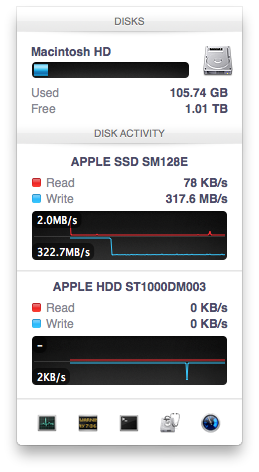
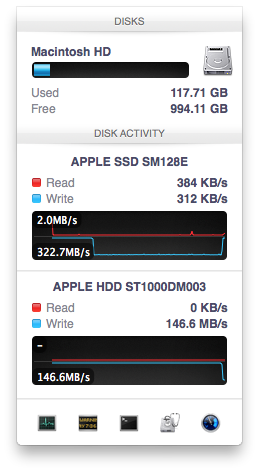
After 117GB of writes the HDD took over, at speeds of roughly 133 - 175MB/s to begin with.
The initial test just confirmed that Fusion Drive is indeed spanning the capacity of both drives. The first 117GB ended up on the SSD and the remaining 1TB of writes went directly to the HDD. It also gave me the first indication of priority: Fusion Drive will try to write to the SSD first, assuming there's sufficient free space (more on this later).
Next up, I wanted to test random IO as this is ultimately where SSDs trump hard drives in performance and typically where SSD caching or hybrid hard drives fall short. I first tried the worst case scenario, a random write test that would span all logical block addresses. Given that the total capacity of the Fusion Drive is 1.1TB, how this test was handled would tell me a lot about how Apple maps LBAs (Logical Block Addresses) between the two drives.
The results were interesting and not unexpected. Both the SSD and HDD saw write activity, with more IOs obviously hitting the hard drive (which consumes a larger percentage of all available LBAs). The average 4KB (QD16) random write performance was around 0.51MB/s, it was constrained by the hard drive portion of the Fusion Drive setup.
After stopping the random write task however, there was immediate moving of data between the HDD and SSD. Since the LBAs were chosen at random, it's possible that some (identical or just spatially similar) addresses were picked more than once and those blocks were immediately marked for promotion to the SSD. This was my first experience with the Fusion Drive actively moving data between drives.
A full span random write test is a bit unfair for a consumer SSD, much less a hybrid SSD/HDD setup with roughly an 1:8 ratio of LBAs. To get an idea of how good Fusion Drive is at dealing with random IO I constrained the random write test to the first 8GB of LBAs.
The resulting performance was quite different. For the first pass, average performance was roughly 7 - 9MB/s, with most of the IO hitting the SSD and a smaller portion hitting the hard drive. After the 3 minute test, I waited while the Fusion Drive moved data around, then repeated it. For the second run, total performance jumped up to 21.9MB/s with more of the IO being moved to the SSD although the hard drive was still seeing writes.
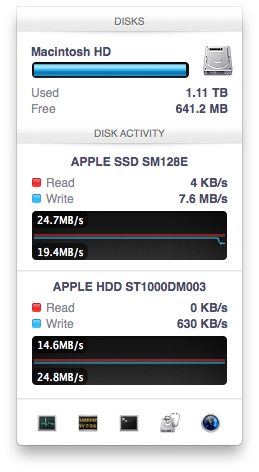
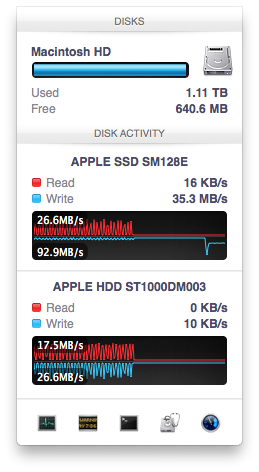
In the shot to the left, most random writes are hitting the SSD but some are still going to the HDD, after some moving of data and remapping of LBAs nearly all random writes go to the SSD and performance is much higher
On the third attempt, nearly all random writes went to the SSD with performance peaking at 98MB/s and dropping to a minimum of 35MB/s as the SSD got more fragmented. This told me that Apple seems to dynamically map LBAs to the SSD based on frequency of access, a very pro-active approach to ensuring high performance. Ultimately this is a big difference between standard SSD caches and what Fusion Drive appears to be doing. Most SSD caches seem to work based on frequency of read access, whereas Fusion Drive appears to (at least partially) take into account what LBAs are frequently targeted for writes and mapping those to the SSD.
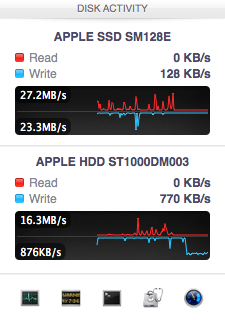
Note that subsequent random write tests produced very different results. As I filled up the Fusion Drive with more data and applications (~80% full of real data and applications), I never saw random write performance reach these levels again. After each run I'd see short periods where data would move around, but random IO hit the Fusion Drive in around an 7:1 ratio of HDD to SSD accesses. Given the capacity difference between the drives, this ratio makes a lot of sense. If you have a workload that is composed of a lot of random writes that span all available space, Fusion Drive isn't for you. Given that most such workloads are confined to the enterprise space, that shouldn't really be a concern here.


 Facebook
 Twitter
 RSS
RSS


127 Comments
View All Comments
EnzoFX - Saturday, January 19, 2013 - link
Yes, exactly. This is the point of computers. It always bothers me when self-proclaimed experts come on tech sites dismissing anything of the sort. I can imagine them saying " Well just do RAID, or just manage the files yourself" and then stating that such a solution as this as unnecessary, when they clearly don't understand the point. They only work to slow such efforts down.name99 - Saturday, January 19, 2013 - link
If your friend has a mac, and if they can borrow enough temporary storage (to copy and hold the files while you make the change over), what I would recommend is that they stripe their 3 HDs together as a single volume. This can be done easily enough using the Disk Utility GUI.(Honestly they should have enough temporary storage anyway, in the form of Time Machine backup).
This will give a single volume (less moving around from one place to another) with 3x the bandwidth (as long as each hard drive is connected to a distinct USB or FW port).
[If the drives are of different sizes, and you don't want to waste the extra space, it is still possible to use them this way, but you will need to use the command line. Assume you have two drives, one of 300GB, one of 400GB --- the extension to more drives is obvious.
You partition the 400GB drive as a 300GB and 100GB partition.
You then
(a) create a striped RAID from the 300GB drive and the 300GB partition
(b) convert the 100GB partition to a (single-drive) concatenated RAID volume [this step is not obviously necessary but is key]
(c) create a concatenated volume from the volume created in (a) and that created in (b).
This will give you 600GB of striped storage, plus 100GB at the end of slower non-striped storage. Can't complain.]
Not a perfect solution, but a substantial improvement on the situation right now.
I don't know the state of the art for SW RAID built into Windows so I can't comment on that.
guidryp - Friday, January 18, 2013 - link
Really this seems like a solution for the lazy or technically naive.Manually managing your SSD/HD resources allows you to speed up based exactly on your own priorities, instead of having some software guessing and making a bunch of unnecessary copies to/from the SSD/HD.
You get faster performance of pure SSD where you want it. Less hiccups from background reorganization, and less unnecessary stressing of the SSD.
Also it isn't exactly difficult to manage manually. Use the SSD for your main OS/Application drive and whatever else you deem important for speed up.
zlandar - Friday, January 18, 2013 - link
"Really this seems like a solution for the lazy or technically naive."If everyone was technologically literate spam wouldn't exist and computer companies wouldn't need customer service for stupid questions.
jeffkibuule - Friday, January 18, 2013 - link
Aren't a lot of solutions built for the technologically naive?NCM - Friday, January 18, 2013 - link
Apple's principal market, especially for the iMac, is to home and small business users. Once again dragging out the familiar, but still applicable, automotive metaphor, I'll point out that most people don't want to work on their cars. They just want to drive reliably to wherever they're going. That's the need that Apple's FD addresses, and it seems to do so rather well.Sure, the price adder is a bit higher than one might hope, but probably not so much that it'll frighten away prospective buyers.
Interestingly though, it lost our sale. I was ready to order another iMac with a 256GB SSD and a 1TB HD for the office. We keep most of the files on the server, but a 128GB SSD application/boot drive is a bit tight. However a 256GB SSD is just right, allowing plenty of free space to maintain SSD performance. The additional 1TB HD is then repurposed for local Time machine backup.
But that's not an option for the new iMac, which offers only HD or FD. And I'm not about to make a risky and warranty busting expedition into its innards in order to roll my own SSD solution (although my own MacBook Pro has a self-installed 512GB SSD).
Instead I ordered up a 256GB SSD Mac mini, plus what turned out to be a very nice 24" 16:10 IPS monitor from HP. Although I would have preferred the all-in-one iMac solution for a cleaner installation without gratuitously trailing cables, the Mac mini with SSD, i7 and 8GB RAM options is fast and effective.
ThreeDee912 - Friday, January 18, 2013 - link
Wasn't this the kind of thing said about virtual memory in the 60's and 70's? Some people back then thought manually managing the location of everything in memory would make things more efficient, until some guys at IBM (or was it Bell Labs?) showed you saved heck of a lot more time letting the machine do it instead of trying to move things around yourself.This Fusion Drive really does reminds me of virtual memory. RAM and HDD mapped in a way so it appears as a single type of memory. Most stuff gets placed into RAM first, some stuff spills over onto the HDD, and stuff gets copied back and forth depending on how frequently it's used. The fast RAM is first priority, but there's the HDD as kind of a backup.
It's a bit different from a caching setup, where the computer has to "guess" a bit more about what should really be on the SSD. It's like the HDD is priority here, while the SSD is secondary.
And just like with virtual memory, none of this would matter if you had a huge amount of RAM or a very large SSD.
web2dot0 - Saturday, January 19, 2013 - link
Great comment ThreeDee9. Someone with a rational mind.To all those "experts" who claim that it's better to manage it yourself, you can also write every program in ASM. It'll be fast and small, but I'll be done with the project in 1/10 the time. The point is .... the product is not meant to provide "absolutely the best possible configuration". It's meant to be best all around solution.
If you guys still don't get it. Well, I guess all these years in the education didn't really help you because logical people think rationally.
psyq321 - Monday, January 21, 2013 - link
Hmm... is it just me who finds it slightly disturbing that we are comparing memory management (and, in some posts later, C vs. assembly coding) with the decision on how to organize documents/files?I would say that the intellectual investment is not really to compare.
Which does not mean that I have anything against SSD caching solutions - on the contrary, I see nothing wrong with ability to transparently manage the optimal location for the content.
TrackSmart - Friday, January 18, 2013 - link
A month ago, I would have said the same thing, but see my other post to understand why more people need this than you think. The proportion of people who can handle manually segregating their files is much, much smaller than most of us realize. I have three systems setup with both an SSD and a HDD and have no troubles. But we are a tiny, tiny minority of users.