



A Month with Apple's Fusion Drive
by Anand Lal Shimpi on January 18, 2013 9:30 AM EST- Posted in
- Storage
- Mac
- SSDs
- Apple
- SSD Caching
- Fusion Drive
Fusion Drive: Under the Hood
I took the 27-inch iMac out of the box and immediately went to work on Fusion Drive testing. I started filling the drive with a 128KB sequential write pass (queue depth of 1). Using iStat Menus 4 to actively monitor the state of both drives I noticed that only the SSD was receiving this initial write pass. The SSD was being written to at 322MB/s with no activity on the HDD.
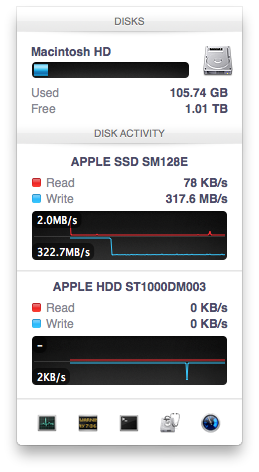
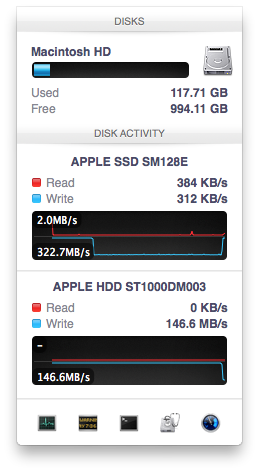
After 117GB of writes the HDD took over, at speeds of roughly 133 - 175MB/s to begin with.
The initial test just confirmed that Fusion Drive is indeed spanning the capacity of both drives. The first 117GB ended up on the SSD and the remaining 1TB of writes went directly to the HDD. It also gave me the first indication of priority: Fusion Drive will try to write to the SSD first, assuming there's sufficient free space (more on this later).
Next up, I wanted to test random IO as this is ultimately where SSDs trump hard drives in performance and typically where SSD caching or hybrid hard drives fall short. I first tried the worst case scenario, a random write test that would span all logical block addresses. Given that the total capacity of the Fusion Drive is 1.1TB, how this test was handled would tell me a lot about how Apple maps LBAs (Logical Block Addresses) between the two drives.
The results were interesting and not unexpected. Both the SSD and HDD saw write activity, with more IOs obviously hitting the hard drive (which consumes a larger percentage of all available LBAs). The average 4KB (QD16) random write performance was around 0.51MB/s, it was constrained by the hard drive portion of the Fusion Drive setup.
After stopping the random write task however, there was immediate moving of data between the HDD and SSD. Since the LBAs were chosen at random, it's possible that some (identical or just spatially similar) addresses were picked more than once and those blocks were immediately marked for promotion to the SSD. This was my first experience with the Fusion Drive actively moving data between drives.
A full span random write test is a bit unfair for a consumer SSD, much less a hybrid SSD/HDD setup with roughly an 1:8 ratio of LBAs. To get an idea of how good Fusion Drive is at dealing with random IO I constrained the random write test to the first 8GB of LBAs.
The resulting performance was quite different. For the first pass, average performance was roughly 7 - 9MB/s, with most of the IO hitting the SSD and a smaller portion hitting the hard drive. After the 3 minute test, I waited while the Fusion Drive moved data around, then repeated it. For the second run, total performance jumped up to 21.9MB/s with more of the IO being moved to the SSD although the hard drive was still seeing writes.
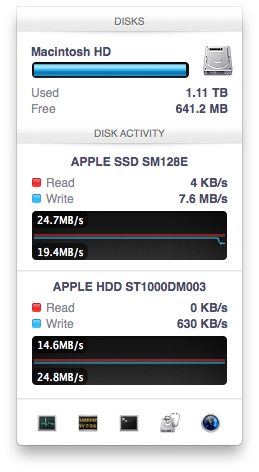
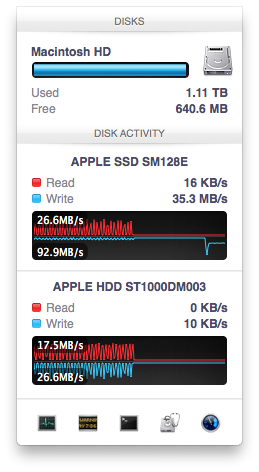
In the shot to the left, most random writes are hitting the SSD but some are still going to the HDD, after some moving of data and remapping of LBAs nearly all random writes go to the SSD and performance is much higher
On the third attempt, nearly all random writes went to the SSD with performance peaking at 98MB/s and dropping to a minimum of 35MB/s as the SSD got more fragmented. This told me that Apple seems to dynamically map LBAs to the SSD based on frequency of access, a very pro-active approach to ensuring high performance. Ultimately this is a big difference between standard SSD caches and what Fusion Drive appears to be doing. Most SSD caches seem to work based on frequency of read access, whereas Fusion Drive appears to (at least partially) take into account what LBAs are frequently targeted for writes and mapping those to the SSD.
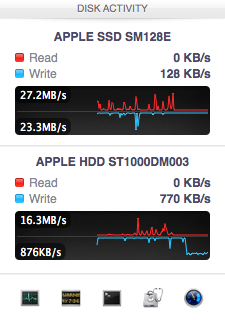
Note that subsequent random write tests produced very different results. As I filled up the Fusion Drive with more data and applications (~80% full of real data and applications), I never saw random write performance reach these levels again. After each run I'd see short periods where data would move around, but random IO hit the Fusion Drive in around an 7:1 ratio of HDD to SSD accesses. Given the capacity difference between the drives, this ratio makes a lot of sense. If you have a workload that is composed of a lot of random writes that span all available space, Fusion Drive isn't for you. Given that most such workloads are confined to the enterprise space, that shouldn't really be a concern here.


 Facebook
 Twitter
 RSS
RSS


127 Comments
View All Comments
philipma1957 - Friday, January 18, 2013 - link
I purchased a mid range mini a Qaud 2.3 with just a 1tb hdd. I added a samsung 830 512gb ssd as the second drive. If you put the ssd in with no format and boot with an external drive you then go to disk utility the internal ssd and internal hdd are highlighted in red. The disk utility sees it as a broken fusion answer yes to fix it and in under a minute you have a 1.5tb fusion. then do an internet recovery to load mountain lion and you have a standalone mac mini with a killer 1.5tb fusion. Everything you mention in your tests(about the ssd being taxed) is less true basically because the ssd is huge and in a 1 to 2 ratio with the hdd. This is the closest I have come to a 1.5 tb ssd.I copied a 500gb eyetv folder with 30 18gb recordings easy peasy. So if you have a 2012 or even a 2011 mac mini and mountain lion just add a big ssd and fusion away.
hypopraxia - Friday, January 18, 2013 - link
I am with you on this one. Fusion drive with a higher SSD to HDD ratio nets huge gains in snappiness and overall SSD-ness of the fusion drive. I have only encountered IO slowdown once or maybe twice in the 2 months I've been running with Fusion.Munkyman42 - Tuesday, March 5, 2013 - link
eeep!I wonder if this'll work on my 2010 Mac Mini Server. If I can squeeze another year or two or performance with even a 64GB SSD upgrade my wallet would be thrilled!
Mr_SkoT_A - Tuesday, May 14, 2013 - link
I have done it on a late 2008 Unibody Macbook and an original Mini Server. Works like a charm!Hughmungalous - Friday, August 30, 2013 - link
I DID IT on a late 2008 macbbok ;-P 250GB Samsung 840 with a WD Blue 640GB HDD its been in a fusion for about 3 months now and runs beautifully... its basically a media server for me and my wife and it never slacks on its duties!!! its snappy switching profiles and logging in and out... wifey uses safari and flash games and what not and i never hear her complain anymore about her slack windows computer... i use it for heavy downloading light gaming and media server. Mr_SkoT_A Just installed i did the fusion setup which was fairly easy, except i used a specific number and got a 860GB drive instead of using a "100%" value to create the (correct amount) 890GB drive so i have 30GB of my drive in fusion limbo right now... all in all i love it the samsung drive was a smart buy i would love to hear from someone who runs with like a 60gb SSD and a 1TB HDD would be nice to know how much money i could have savedNans - Tuesday, December 30, 2014 - link
Did you fusion drive, from recovery Disk Utility as "I purchased a mid range mini a Qaud 2.3 with just a 1tb hdd. I added a samsung 830 512gb ssd as the second drive. If you put the ssd in with no format and boot with an external drive you then go to disk utility the internal ssd and internal hdd are highlighted in red. The disk utility sees it as a broken fusion answer yes to fix it and in under a minute you have a 1.5tb fusion. then do an internet recovery to load mountain lion and you have a standalone mac mini with a killer 1.5tb fusion. Everything you mention in your tests(about the ssd being taxed) is less true basically because the ssd is huge and in a 1 to 2 ratio with the hdd. This is the closest I have come to a 1.5 tb ssd." said in the previous comment, or did you do it by terminal? Because as far as i know, i can't seem to fusion without terminal in diskuttil?techdaddy1 - Wednesday, May 29, 2013 - link
Hello...can you please clarify regarding booking from an external drive? So you're saying you just installed a ssd you purchased into the machine in addition to the HDD that it came with and disk utility automatically created the fusion? did you need any extra parts to install the ssd? Anything you could tell me would be appreciated. I just purchased the Quad 2.3 Mini as well. Thank you for your time :-)niccopernicus - Sunday, November 3, 2013 - link
I just had my original iMac (recent (not the newest) model with a 2.93 GHz Core i7, now running Mavericks) hard drive replaced with a larger one. I had a 512 SSD installed at the same time, which was formatted and ready to use when i got it back. Is there a way to do the manuver you describe above with Disk Utility now that has already been formatted?Nans - Tuesday, December 30, 2014 - link
Hej, would this method work on a macbook pro 2011 version? Or is it only exclusive for Mac Mini? Because i can start a recovery HD from the internet, by holding option command and R, and how will i not format it ? IF it is already is formated The ssd how can not format it?hypopraxia - Friday, January 18, 2013 - link
So, after I read up on core storage, I rolled a fusion drive in my 2011 macbook pro 13", using a 240GB SSD (sand force controller) and the stock 320GB HDD. (I removed the optical drive. Stupid optical drive...) It honestly feels like a 550GB SSD. Then again, My ratio of SSD to HDD is 3:4, so as always, YMMV.