



Linksys Etherfast Cable/DSL Router
by Jason Clark & Greg Hanna on March 23, 2000 1:05 AM EST- Posted in
- Networking
Administration Module
The administration of the router is unique for this genre of product. Most network administrators are used to having to use telnet to configure the router. Well, Linksys has used a new approach to administration. The router has a built in webserver, so to configure it you simple open a browser up and go to the router's internal IP. Below are all the various screens in the administration area, and what each one does.
| Main Configuration Page | |
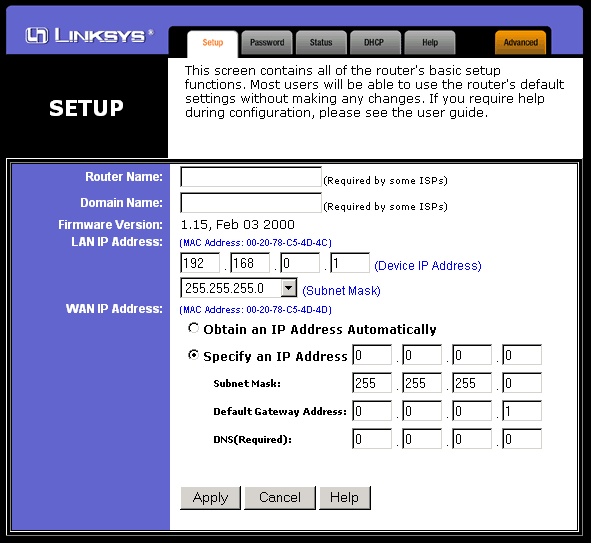 |
Once logged in, this is first configuration page you will see. Here, you can enter in a static IP for your router, or if your Cable/DSL ISP uses DHCP to assign you an IP address you can select the DHCP option. You can also set the domain name and router name, which for cable is usually something like CR123456-A. Not really all that much here to play with, but this is really all you need to touch for a basic network setup. |
Password Configuration Page |
|
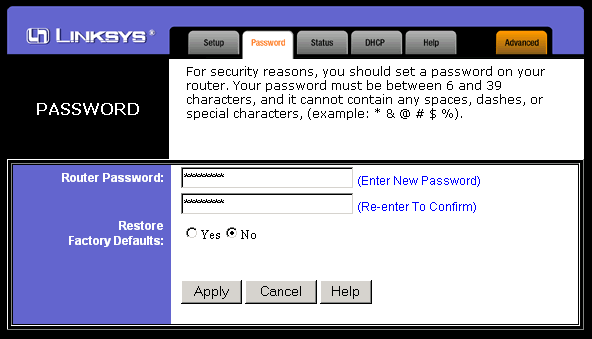 |
The router's webserver is protected by a password, which you can change in this screen. |
Status Page |
|
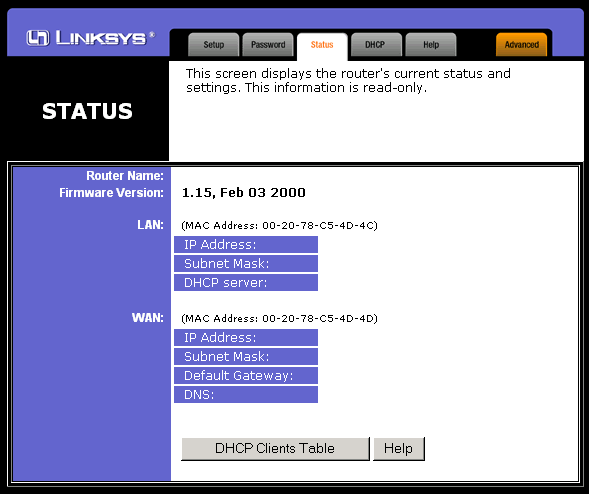 |
Fairly basic information here. You can view MAC address for the WAN and LAN interface. This page also shows the router name, firmware, gateway, subnet and whether or not the DHCP server is enabled. |
DHCP Configuration Page |
|
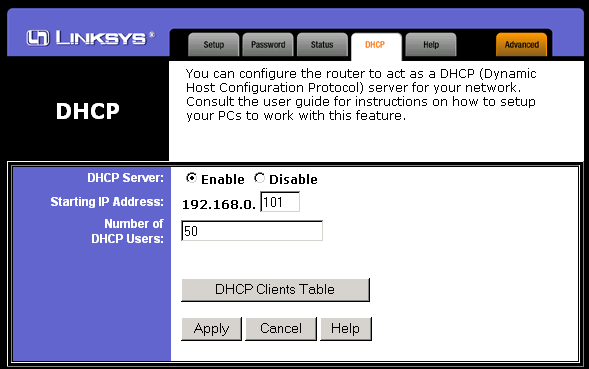 |
Built into this router is a DHCP server. You can enable or disable the DHCP server and specify what IP range you want to dynamically assign. By clicking the "DHCP Clients Table" button you can see what IP's have been served and each machine's NETBIOS name, MAC address and assigned IP. |
Help Page |
|
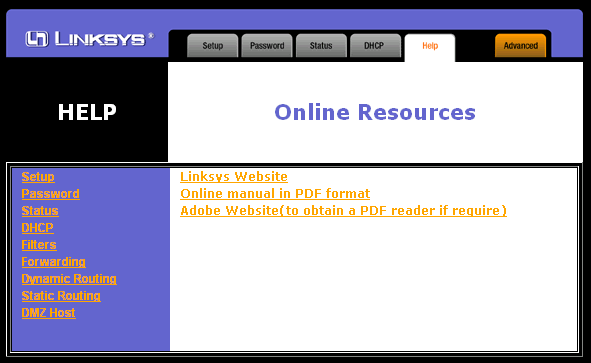 |
Not much to say here, the help area contains a description of what each page does and a link to the PDF manual. |


 Facebook
 Twitter
 RSS
RSS


1 Comments
View All Comments
192168ll - Saturday, October 27, 2018 - link
What is the Default Gateway IP Address of Linksys Router? Bit Confused 192.168.0.1 or 192.168.1.1_______________________________________________________________________
https://19216811.is/