



Plextor M3 Pro (256GB) Review
by Kristian Vättö on July 1, 2012 1:45 PM ESTIntroducing Plextool, Plextor's SSD Toolbox
A toolbox is one of the things that separate the wheat from the chaff. Most SSD manufacturers do not offer one, even though SandForce provides a toolbox to every SandForce SSD OEM. Some SF OEMs have simply chosen not to distribute it, although it's possible that there is an associated cost. Intel's and Samsung's toolboxes are probably the most famous and that's for a reason—they really are great. If you want to provide as good an experience for the end-user as possible, a toolbox is more or less necessary. Plextor clearly understands this and thus they have made their own toolbox called Plextool.
Plextool is compatible with with Plextor's M2S, M2P, M3 and M3 Pro series SSDs. See the table below for the firmware version your drive needs in order to be compatible with Plextool:
| Series | M2S | M2P | M3 | M3 Pro |
| Firmware | 1.09 | 1.08 | 1.04 (1.03 for 64GB and 512GB) | 1.03 |
In case you don't know what firmware version your drive is running, you can find out using Device Manager in WIndows. In Device Manager, open Disk drives and right-click your SSD and select Properties. Go to the details tab and select 'Hardware Ids' from the dropdown menu. You should now have a window that looks like this:
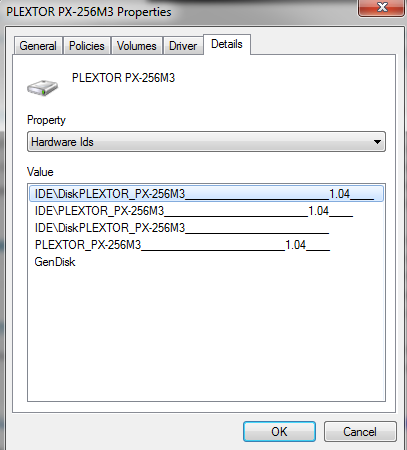
The 1.04 at the end represents the firmware version. And yes, it does change if you update the drive, so it does not stand for the firmware your drive shipped with. I'm using the regular M3 for this section as I've been using it as my boot drive for a few months now, and hence it should give us a better look into what Plextool offers.
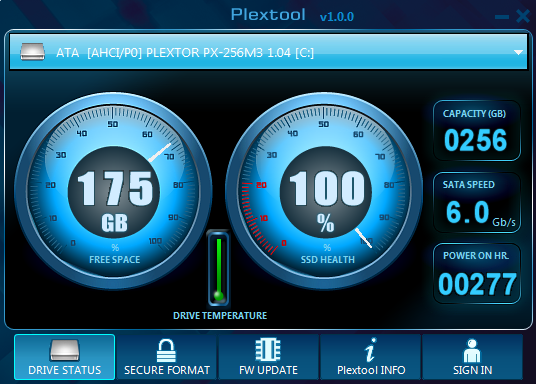
The user interface is very basic and easy to use. There is a dropdown menu of connected drives on the top where you must select your Plextor SSD to see the specifics of your drive. Plextool can read some data on other drives, such as capacity and free space, but other features are strictly for Plextor's SSDs.
Plextool can report the total capacity of your drive as well as the remaining space. These you can easily check in Windows but drive temperature, power on hours, and SSD health are harder to check without third party software. Plextool does not report the actual temperature, though; only whether the temperature is safe or not.
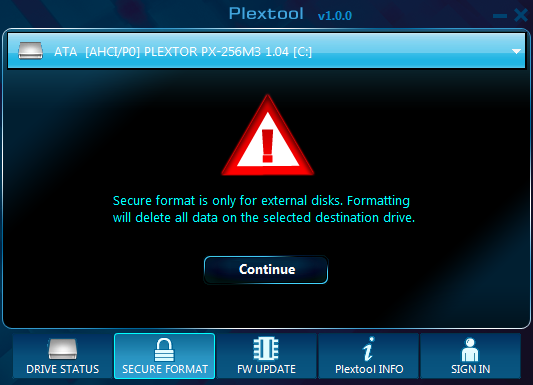
The second tab, 'secure format' allows you to secure erase the drive within Windows. Otherwise you're left with HDD Erase or Linux methods to trigger the drive's internal secure erase function, so secure erase is definitely a welcome addition. However, the only problem is that Plextool only supports secure erase of external drives. I can see Plextor's reasoning behind the decision as it's always risky if you can destroy hundreds of GBs worth of data with just one click. On the other hand, it does seem a bit futile feature now, especially from a reviewer's standpoint. I find it to be more hassle to put the drive inside an enclosure than to simply secure erase the drive with other methods.
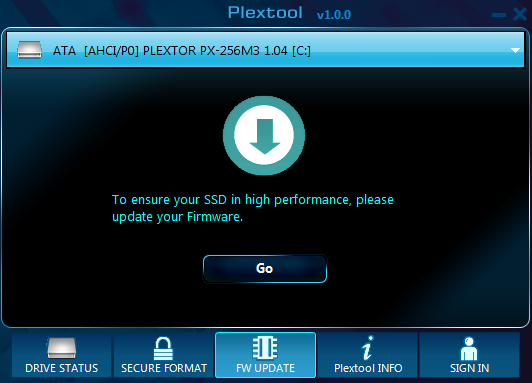
The third and final tab with features is the firmware update tab. Clicking the 'Go' link will open Plextor's firmware update page, so it's essentially just a link to their site.
The two remaining tabs don't hold any real tools. The 'Plextool INFO' tab is basically a help section that includes instructions for how to read the drive status tab. The last tab, 'SIGN IN' is a link to Plextor's VIP registration. However, at least right now the link is dead so we don't know if the VIP membership brings any real benefits.
All in all, I'm extremely happy that Plextor has taken the time and money to build Plextool. There aren't too many toolboxes out there, so offering your own is definitely a great way to differentiate yourself from the competition. It's evident that Plextool is at version 1.0.0, though. Currently it offers a very limited set of features, some of which are easily accessible under WIndows too. It would be useful to see things such as the SMART details that Intel toolbox shows. Making the over-provisioning user-configurable, like Samsung has done, would also be great, especially if the drive is to be put under heavy load. Secure erasing being limited to external drives is also a bit of a con. Hopefully future versions will at least bring some of these useful features.


 Facebook
 Twitter
 RSS
RSS


55 Comments
View All Comments
NCM - Monday, July 2, 2012 - link
Three things I forgot to include in my post above:- The Plextor needs to be reformatted for the Mac. You use Apple's Disk Utility to handle that, as with any other drive.
- Cloning the original drive using DU's Restore function will also automatically clone Lion's hidden Recovery partition.
- Absolute SSD performance is limited by my 2010 MBP's 3 Gb/s SATA interface, so I could have bought a cheaper last generation drive. However I hope to be keeping this pricey SSD long enough for it to see at least one more host computer, and that will support faster transfers.
Belard - Monday, July 2, 2012 - link
Pretty much ALL new SSDs are SATA3.0 / 6GB/s... so its not really an issue.Its older tech or mix tech models that are SATA2.
Kristian Vättö - Monday, July 2, 2012 - link
Not with the regular updater at least. In theory, someone could modify the installer and make it possible though.Kyanzes - Monday, July 2, 2012 - link
"relatively unknown brand" :)Okay.
bobsmith1492 - Monday, July 2, 2012 - link
Yes they are relatively unknown. Yes they used to be more well-known but only for optical drives.eanazag - Monday, July 2, 2012 - link
I would like to see a 2.5" HDD at 5400 rpm and 7200 rpm sample data for a baseline included in the reviews. I don't care if they ever get updated after that. I would just like to be able to quickly see where the mechanical drives chime in.Performance would data would be icing, but power data is nice.
If I upgrade my users to a drive off this list, which is very likely. I'd like to be able to tell them if they are going to take a hit on battery life or a boost.
Belard - Monday, July 2, 2012 - link
They stopped doing that some time ago because it messes up the charts somewhat. Basically, they just don't compare... and that was before the SATA 6Gbps drives came out.Here is a early 2011 review with a WD VelociRaptor (The fastest HD money can buy for a consumer drive). And yet, its a sliver. Only SSDs that perform almost as slow are the bottom end SSD. And keep in mind, the Raptors are 2-3 times faster than a 5400RPM drive.
http://www.anandtech.com/show/4346/ocz-agility-3-2...
RANDOM READ (MB/s)
00.68 = Raptor
58.10 = Intel X25-M G2 (still a very good drive)
93.50 = Crucial C300 (early 6Gbps drives)
Sequential READ (MB/s)
145.30 = Raptor
226.30 = Intel X25-M G2 (still a very good drive)
307.20 = Crucial C300 (early 6Gbps drives)
392.20 = Intel 510 SSD (6Gbps)
A modern high end SSD is about 100x faster in random R / W operations over any HD.
Oh, here is a GOOD older 2010 review which includes a Seagate 5400 RPM 2.5" drive. OUCH!
http://www.anandtech.com/show/3690/the-impact-of-s...
See how the chart becomes somewhat meaningless? And thats with 3Gbps drives!
Imagine looking at a chart comparing a 16mhz 286 to a quad core 3400mhz i5 CPU.
hechacker1 - Monday, July 2, 2012 - link
Probably, assuming there isn't some checksum that can't be cracked to flash the drive.In my experience, almost all drive firmwares can be flashed.
sulu1977 - Monday, July 2, 2012 - link
Speed and performance of such a device is important, but not as important as reliability. Reliability is hands down my top priority. Just wanted to mention this.octoploid - Tuesday, July 3, 2012 - link
There is already an unofficial tool available that can transform a normal M3 into an M3-Pro:http://bbs.pceva.com.cn/thread-47279-1-1.html