



Samsung Galaxy Nexus & Ice Cream Sandwich Review
by Brian Klug & Anand Lal Shimpi on January 18, 2012 1:34 PM ESTThe UI: Holo Evolved
When I first met Holo, Google's Honeycomb theme, I wasn't convinced that it was something that would last. It was different, which earned Google points for sure, but it wasn't exactly comfortable. I was surprised to see an evolution of Holo used in ICS, but the theme has grown on me.
Ice Cream Sandwich feels a lot like Android meets Windows Phone. Part of that surely has to do with the very contrasty nature of the theme, but it's also the choice of font (Android 4.0 replaces Droid Sans with Roboto) and hard edges sprinkled throughout the UI. Holo is still distinctly Android in that there are still multiple home screens with support for widgets, but it's also different. Ice Cream Sandwich is Android maturing, it's the second implementation of Holo allowing us to finally plot a trajectory for where Google sees this thing going in the near term. It's different as I mentioned before. Holo and ICS aren't iOS nor does it look like they ever will be. The UI is either going to pull you in or turn you off. I like it. It's different, it's clearly a play on the whole Android theme; it's the type of UI you'd expect from an OS named after a robot.
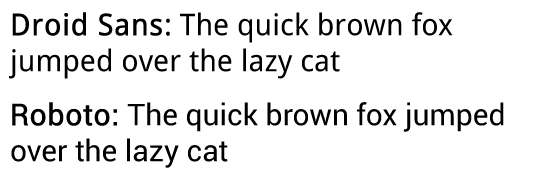
Droid Sans v. Roboto (ICS)
At the same time it's no longer awkward. Elements of the design and many of the first party apps are just clean. It's truly a first class citizen. Different than both iOS and Windows Phone, but with a design that's just as credible.
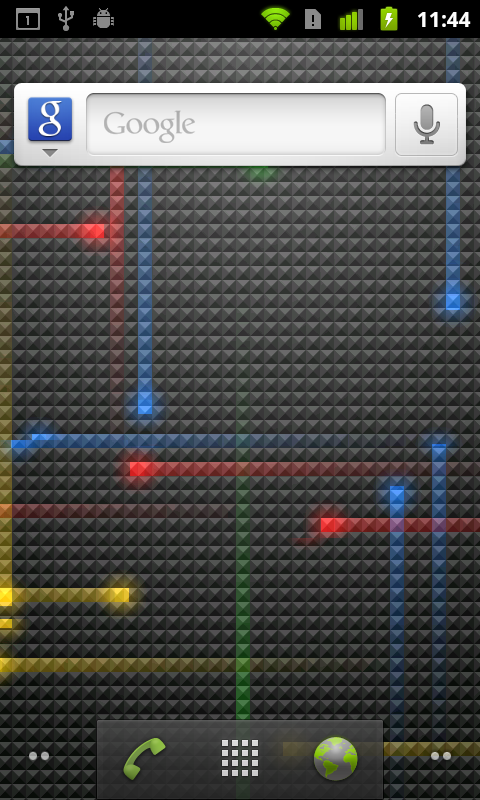
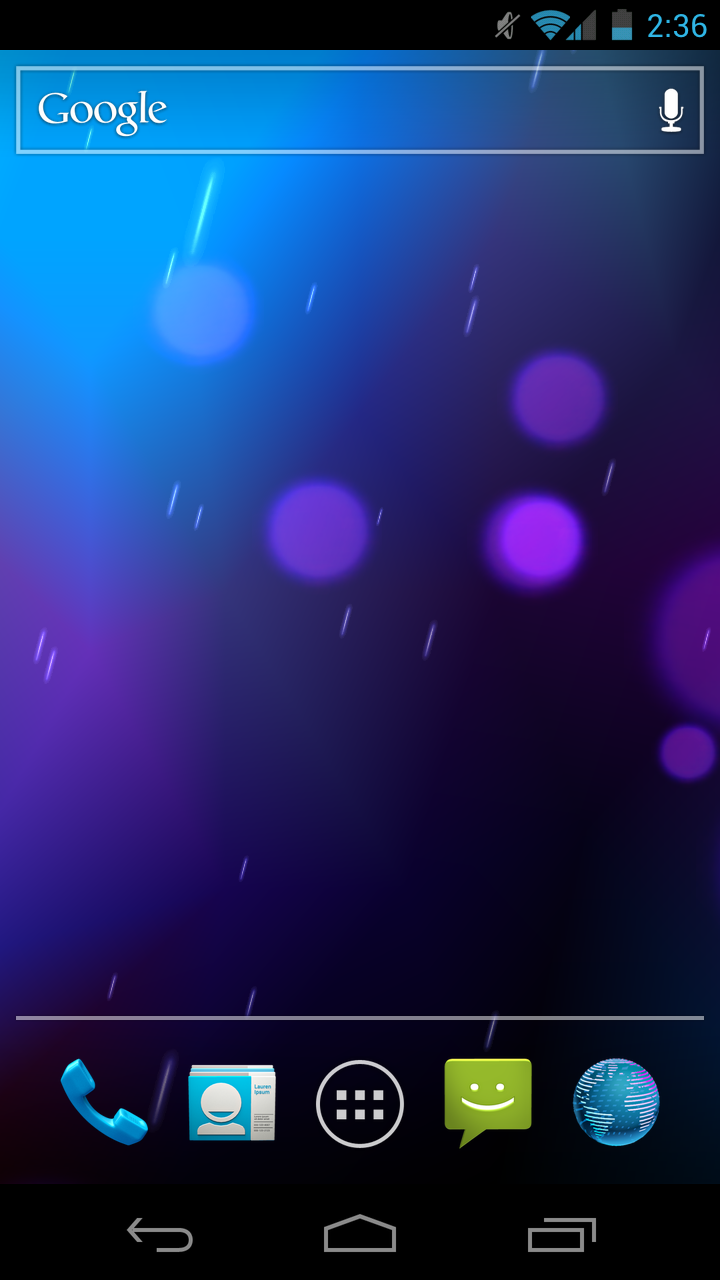
The core of Android remains unchanged. You get multiple home screens (five by default) that you can populate with shortcuts, widgets or folders. Widgets are resizable just as they were in Honeycomb. Shortcuts work the same way they always have, while Folders get a nice update in ICS. Drag any icon on top of another one and they'll create a folder. Folders are quick to open and easy to rename, just tap on the name of any open folder and type away.
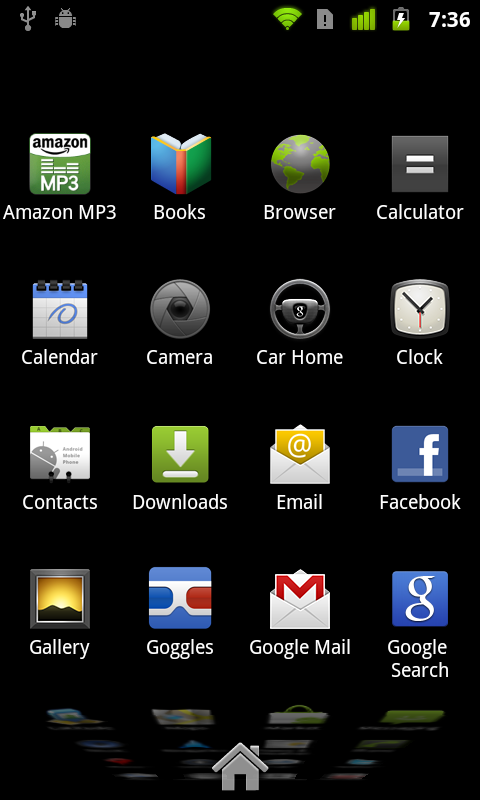
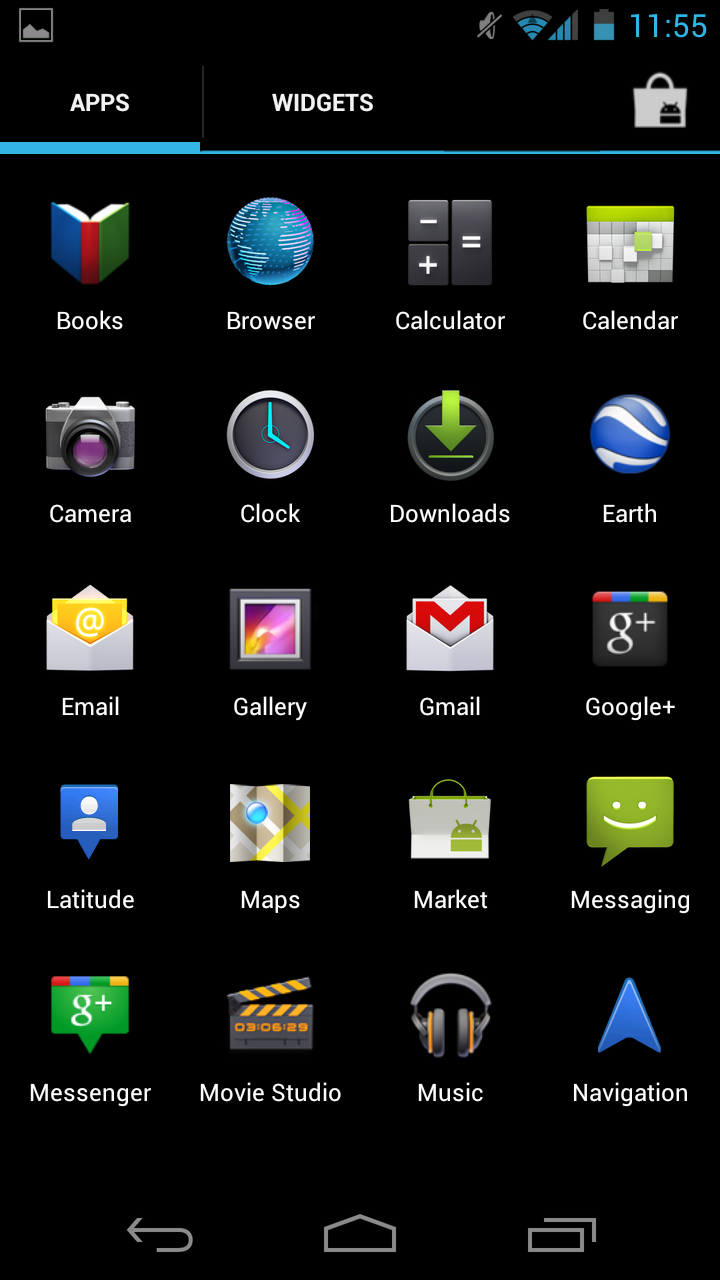
The app launcher gets a bit of a facelift. Instead of an endless scrolling cube, you get pages of apps that you flip through. Once you've reached the end of your pages of apps you'll start flipping through widgets. All of this is smoother than it has ever been on Android.
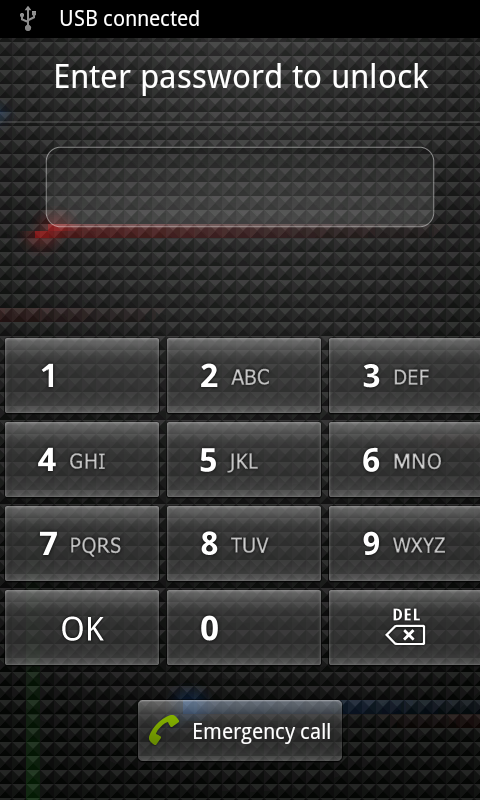
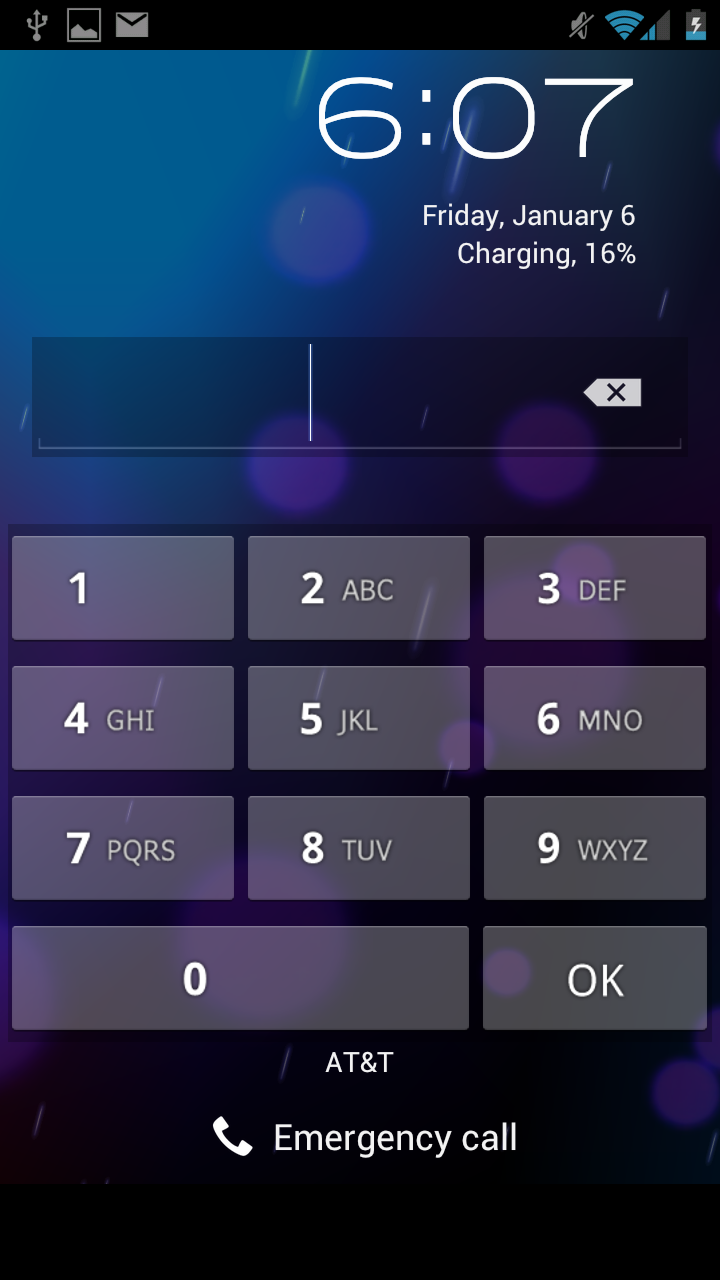
| Gingerbread vs. Ice Cream Sandwich | ||||
| Gingerbread | Ice Cream Sandwich | |||
| Lock |
 |
 |
||
| Home |
 |
 |
||
| Launcher |
 |
 |
||
The New Contextual Menu Button
Play around with ICS for a little bit and you'll quickly pick up on a new UI element that appears inspired by Windows Phone:
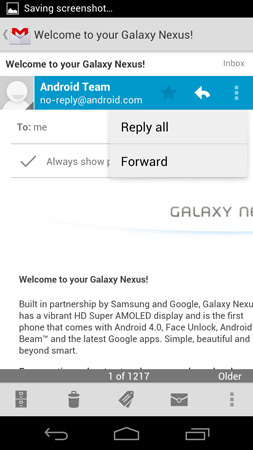
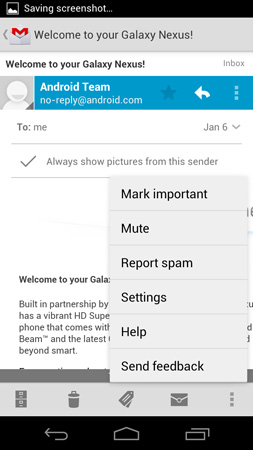
These vertically oriented ellipses will appear at either the top or bottom of an app and reveal additional menu options.
In Gingerbread you had the fixed Android menu button, but with that gone you have to rely on these contextual menu buttons to bring up additional actions. I'm honestly pleased with the move because all too often I'd forget to tap the menu button to see whether or not there were additional options in Gingerbread. ICS makes it very obvious when there's more you can do.
The Task Switcher
A cornerstone of any good operating system is a good task switcher. I still believe that webOS dealt with the concept of individual apps and switching between them better than any other mobile OS, but it looks like that platform is pretty much dead with little chance of making it into the top three mobile OSes.
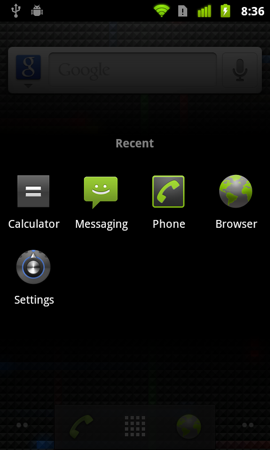
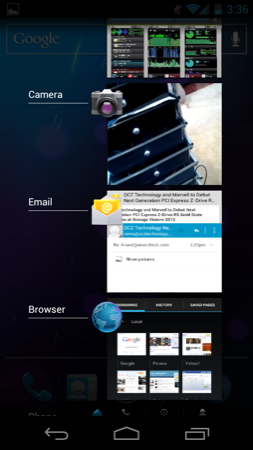
Google and iOS haven't traditionally focused much on task switching, although both have provided support for it. In Gingerbread, you'd switch between apps by holding down the home button, which brought up a list of up to eight of your most recently used apps. Ice Cream Sandwich implements a drawer-style app switcher menu, first introduced in Honeycomb, activated by hitting the dedicated task switcher button:
| Gingerbread vs. Ice Cream Sandwich | ||||
| Gingerbread | Ice Cream Sandwich | |||
| Task Switcher |
 |
 |
||
The Gingerbread method of switching may be quicker, but it's definitely not as useful as what ICS offers. For starters you can switch between more than just six apps in ICS. The most recent apps are located at the bottom of the list, the oldest at the top. You can also quit apps using the switcher by sliding them to the left or right. Doing so immediately frees up any memory the app was using, even if it was suspended.
Scrolling through the list of recent apps, like scrolling pretty much anywhere in ICS, is extremely smooth. The only real complaint I have here is that the task switcher takes far too long to draw initially. As I alluded to before, this is something that may get better with a faster SoC, particularly one with a faster GPU.
The Shade & Notifications
Notifications in ICS are still handled via the status bar at the very top of the screen and a pull down notification shade. The shade in ICS is partially transparent by default and once again, very smoothly animated. The network carrier string is included at the bottom of the shade rather than in the status bar at the top. You can clear notifications individually or hit the X to clear all of them.
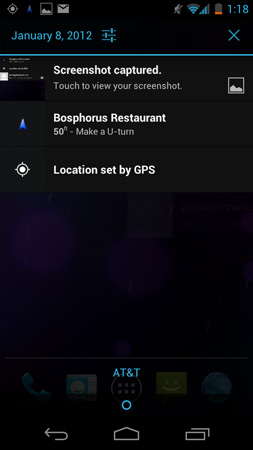
I am surprised Google didn't borrow the quick settings options its partners usually like to stick in the shade, but there is a link to the system settings panel at the top.
Screenshots
Android 4.x also finally enables the ability to take screenshots from within the OS. There's no necessity for OEMs to bake-in their own screenshot functionality and key press combination, no need to connect using USB and fire up ddms, and no need to root and install some application to make it work. Traditionally, those three have been the exclusive way to get screenshots taken on Android.
To take a screenshot in Android 4.x, simply hold volume down and the power/lock button at the same time. An animation plays, you get a notification, and the screenshot is saved (with a timestamped name in PNG format) in /pictures/screenshots as shown above.
I can't emphasize enough how important being able to take screenshots is for a platform in general. Without screenshots, users can only vicariously share a given OS when they're in direct contact with someone else. Being able to take screenshots without all the nonsense I've outlined above is part of what has made iOS so ubiquitous online - browse Reddit and count how many screenshots of SMS conversations (trite as they all are) are clearly from iOS versus Android. It's clear to me that Matias Duarte understands this, since webOS and even the Danger Hiptop since day 1 had the ability to take screenshots. Now Android 4.x finally joins the fray.


 Facebook
 Twitter
 RSS
RSS


185 Comments
View All Comments
zorxd - Thursday, January 19, 2012 - link
And what exactly is more efficient?c4v3man - Thursday, January 19, 2012 - link
Their implimention of pseudo-multitasking as opposed to the much more flexible multitasking in Android.erple2 - Friday, January 20, 2012 - link
Bingo!Since the iOS can't do "true" multitasking, primarily as a design decision on Apple's part to greatly improve battery life (seen the battery life numbers on WebOS? They're pretty terrible), the requirements for memory are generally quite a bit lower than for Android.
You could argue all day as to which one is better, and still not come up with a clear winner. This is strictly due to the phone form factor. Given the limitations on usable screen size (can't display 2 apps at once reliably), and that you have to rely on battery life, the argument of which is "better" is more difficult to make. These all disappear when power is no longer a serious concern (desktop), nor physical screen display (notebook through desktop).
zorxd - Friday, January 20, 2012 - link
yeah and DOS is better because it works fine with only 1MB RAM.OCedHrt - Friday, January 20, 2012 - link
Which is fine due to fast app switching.trob6969 - Wednesday, January 18, 2012 - link
You didn't have to sacrifice GPU performqnce for a 4.3 inch 720p HD display. You could have done what i did and got an htc rezound. I downloaded Dead space, which is probably one of the most GPU demanding games for a phone, and gameplay is FLAWLESS on it! ZERO choppiness throughout the game. My rezound plays this game just as smoothly as my playstation 3. That says a lot about a phone's performance.metafor - Wednesday, January 18, 2012 - link
Note that with the increased clockspeed to the SGX540, the OMAP4460 matches the GPU performance of a Snapdragon S3 (used in the Rezound).Both chips perform similarly with the CPU clock at 1.2GHz (compare Sensation 4G to GN, for example).
dwang - Wednesday, January 18, 2012 - link
Deadspace runs perfectly fine on the galaxy nexus. No choppiness or slowdown.Zoomer - Thursday, January 19, 2012 - link
TI probably didn't anticipate the move to such high resolutions. The 540 was probably chosen as a good enough solution, given the power reqs are well.This is where Apple's hardware-software codesign wins out.
Johnmcl7 - Wednesday, January 18, 2012 - link
That reasoning that microSD cards are too slow seems to only apply to some of the cheap phones which pretty only use micro SD storage, for a phone like the Nexus it doesn't matter as you say because the micro SD card is for storage rather than applications. I don't really understand why the Nexus doesn't get a harder time for the lack of microSD storage given the relatively low onboard storage and high spec which means it can play back high resolution video which needs quite a bit of space. It's one of the main reasons I went for the Note instead which has the better camera, faster GPU and the micro SD storage allowing me to add 32GB very cheaply (and more down the line when 64GB cards come down in price) which is pretty necessary as the high resolution video recording and other features chew through space very quickly.John