Cropping
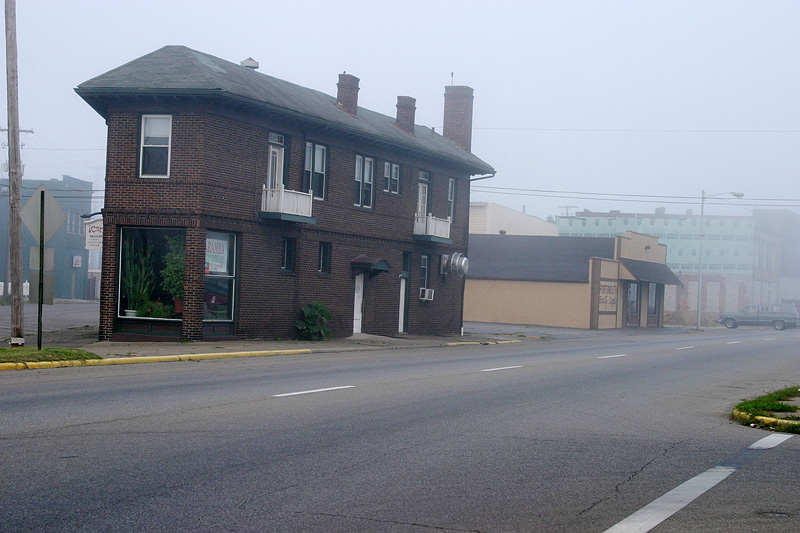
After backing up your image and setting the appropriate color space, one of the first things that you will want to do is crop the image. At this point, if your image is a bit crooked, we can kill two birds with one stone. Also, since the Crop tool works the same in both Photoshop and Elements, we’ll discuss cropping as it pertains to both versions. In our example below, we will straighten our image with the Crop tool.
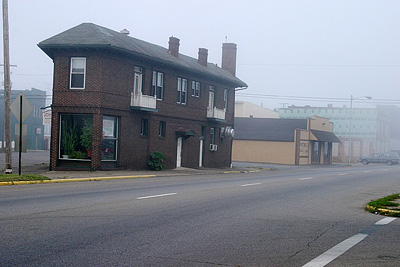
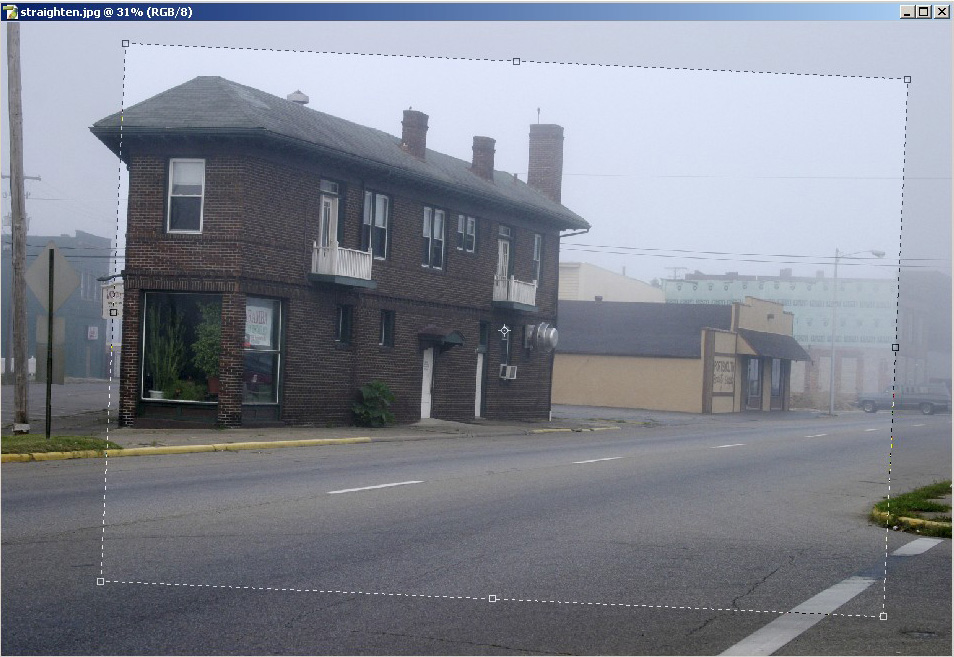
Crooked image
Click to enlarge.
First, select the Crop tool from the Tools palette. Then, draw a crop box within the image (the size and placement isn’t important right now). Now, look for a line in your image that should be perfectly vertical or horizontal. Move your mouse to the outside of the crop box until the cursor turns into a double-sided curved arrow. Rotate the crop box until it is parallel with the edge that should be vertical or horizontal as demonstrated below.
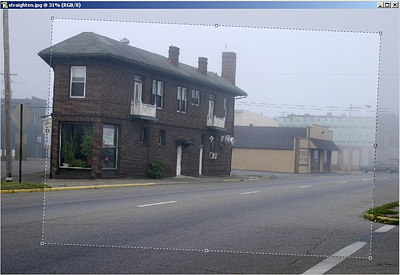
Rotating the crop box
Click to enlarge.
In our example above, we used the left edge of the building as a guide. Once you have the crop box rotated the way that you want it, simply resize the box until the image is framed the way to your liking. If at any time you want to cancel the crop, just press Escape. Otherwise, press Enter or double-click inside the box to finalize the crop.
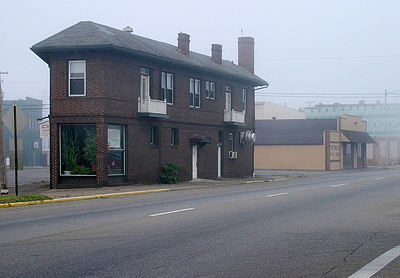
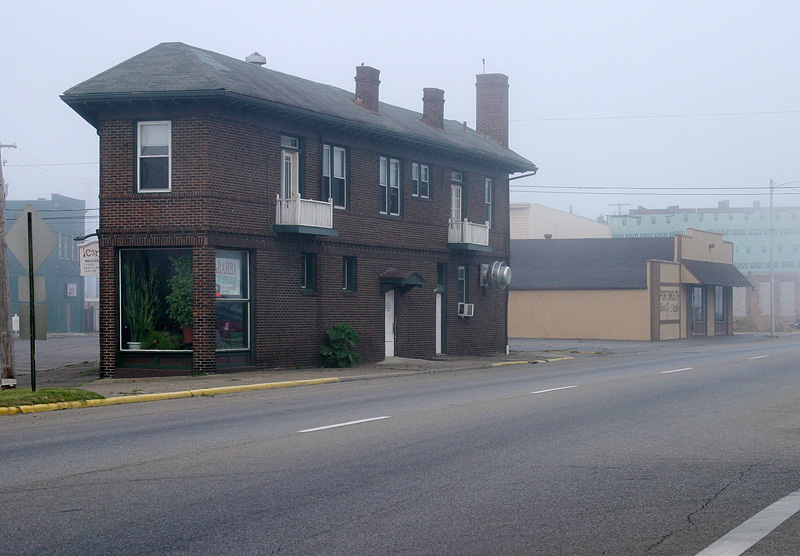
Straightened and cropped image
Click to enlarge.
After that little bit of work, we’ve straightened our image and cropped out some unnecessary space.

Options palette
Click to enlarge.
Another cool thing that you can do with the Crop tool is to specify the output dimensions. For example, let’s say that we plan on printing this image as an 8” x 10” print. Simply type the dimensions in the Options palette. You may have to type in the unit after the number (ex: “in” for inches or “cm” for centimeters). You can also type in the output resolution to the right of the “height” box (ex: 300 ppi). Then, rotate and resize your crop box like we did previously. This time, you will notice that the crop box will retain the appropriate ratio automatically. Now when you press “Enter”, your image will be in the right dimensions for an 8” x 10” print. If your digicam shoots images with an aspect ratio of 4:3 instead of 3:2, you will find this cropping method invaluable in getting your pictures ready for print. We use the Crop tool all the time to make thumbnails for our articles, which must be 60x75 pixels. Just specify “px” as the unit instead of “in”.






 Facebook
 Twitter
 RSS
RSS


20 Comments
View All Comments
Bobby Peru - Thursday, June 23, 2005 - link
Would love it if you'd describe batch processing of photos. With Photoshop or, I think the simplest way is running ImageMagick on Linux or Windows Cygwin. You can just whack a whole folder of 100 photos with one simple command line. The underlying DSP algorithms are basically identical to Photoshops's.buttwhacker - Wednesday, April 13, 2005 - link
good article, very informative and i hope u can add to this article.THEJUICE - Tuesday, March 29, 2005 - link
Useful article and enjoy the series. Thanks.vladik007 - Thursday, March 24, 2005 - link
wouldnt it be better just using selection , feather , and adjusting color channels insidethat selection ?red is usually 100% , so you take it down to 5- 10 % , green and blue are best at 50 % in red channel...
never really liked burn tool for red eye ...
stephencaston - Monday, March 21, 2005 - link
#15,I assure you the original image was not doctored. That would defeat the purpose of post-processing ;-) We've updated the page to include a link to the original file. To get the brush to the right size, use the "[" and "]" keys to increase and decrease the brush size. In our example, the Color Replacement Tool is actually desaturating whatever you paint. So, if you can't get the brush to the exact size, it is best to select a smaller brush and paint around inside the pupil until the red-eye is gone. Good luck!
E Scott Channell - Monday, March 21, 2005 - link
I'm curious how the red-eye sample photograph was obtained... the red-eye region appeared to match the paint-brush shape perfectly... Sometimes getting good results takes a wee bit of fiddling so if this was a doctored "good photo" used for illustration it would provide unreasonable expectations as to what a "quick fix" can achieve.Also, if this is a doctored photo the article should make mention of that.
jeffbui - Sunday, March 20, 2005 - link
Good article as well. An amateur has to start somewhere.Gatak - Sunday, March 20, 2005 - link
Actually. Have you tried to do basic stuff like levels, curves and channel mixer with Gimp? The results are inferior to that of Photoshop, especially when you use 16bit/channel mode.AnandTech, you should do a article where you compare photoediting steps between Photoshop and Gimp.
PrinceGaz - Sunday, March 20, 2005 - link
Nice article if you use Photoshop [Elements]. Did Adobe sponsor this article, Stephen?Everything you told people how to do with Photoshop can be done just as easily with Paintshop Pro, the full version of which costs only slightly more than Photoshop Elements, but isn't a cut down version like Elements is. Unless it came free with the camera, or a scanner, you'd have to be crazy to go the Photoshop route just for tweaking your pictures when much cheaper and equally good options are available.
Even splashing out for Paintshop Pro is probably unnecessary for the vast majority of people who will find everything they need available in the freeware image program 'The Gimp'. It might have been better to assume people were using The Gimp rather than Photoshop, as everyone can download The Gimp free of charge (legally).
unhaiduc - Sunday, March 20, 2005 - link
great article, i read every one of your photo tutorials and loved every bit of it!cant wait for the next one :)