



NVIDIA's GeForce 6 SLI: Demolishing Performance Barriers
by Anand Lal Shimpi on November 23, 2004 10:23 AM EST- Posted in
- GPUs
Enabling SLI
We’ve already described the SLI setup process in our Preview of NVIDIA SLI Performance, but we will revisit it here today using the ASUS A8N-SLI Deluxe board as there are some differences.
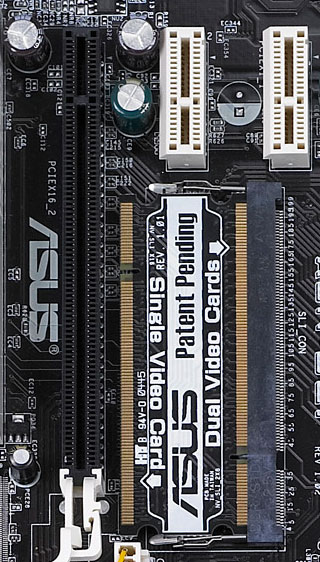
The first step in enabling SLI is to reconfigure the PCI Express x16 lanes from the nForce4 SLI chipset into two x8 lanes, this is done by inserting the SLI card in the appropriate direction:
Next, you plug in both PCI Express graphics cards. They must be the same GPU type, but you can use cards from different manufacturers if you would like (although it is recommended to have the same BIOS revisions, etc…).
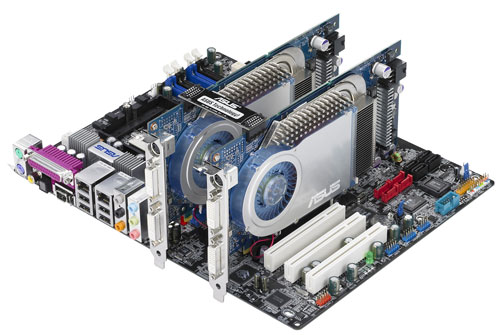
Third, connect the two PCI Express graphics cards using the ASUS supplied bridge PCB.
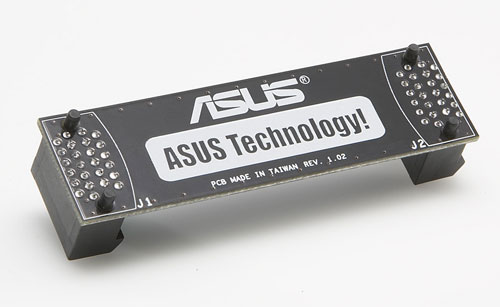
Fourth, connect the appropriate power connectors to both PCI Express graphics cards.
Fifth, connect power to ASUS’ on-board 4-pin power connector.
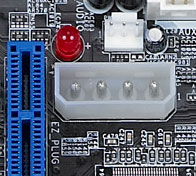
Finally, connect your monitor to either one of the outputs on the first PCI Express card and power up your system.
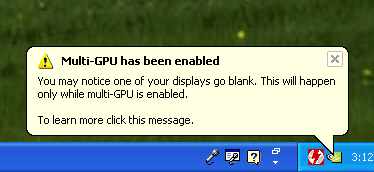
Once in Windows, using the 66.93 drivers, you simply enable SLI mode from NVIDIA’s control panel and reboot your system to enable SLI. Note that only your primary graphics card’s display outputs will be active in SLI mode.
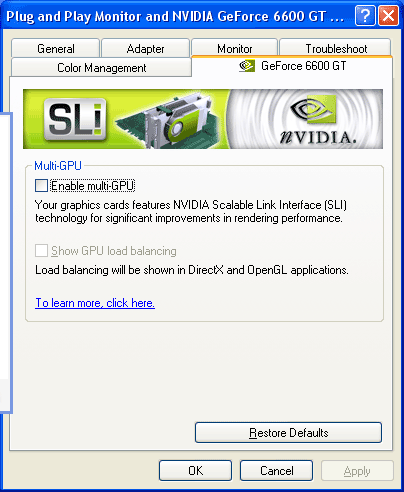
Clicking the check box requires a restart to enable (or disable) SLI, but after you've rebooted everything is good to go.


 Facebook
 Twitter
 RSS
RSS


74 Comments
View All Comments
Kolbe - Monday, February 14, 2005 - link
BUYER BEWARE!!first, I have this ASUS motherboard and two GigaByte 6600GT's. AFter countless hours of trying to get this to work AND of course upgrading bios and drivers, I came to find out that these two gigabyte cards are not certified by Nvidia and they will not work in the sli mode on this ASUS board. ASUS has not returned my calls or my emails, but gigabyte, bless their hearts, wrote me back and said in essence: "our 6600GT cards work on OUR board" so too bad. Thank God for Newegg and their awesome return policy. I am returning these two and getting one 6800 GT, but of course, not from Gigabyte!
mashie - Sunday, December 5, 2004 - link
It would be nice to see tests at 2048x1536. After all if you can afford the videocards for SLI I bet you can get a proper monitor as well ;)Denial - Thursday, December 2, 2004 - link
Again, why no vanilla 6800's? How would they compete with the 6600GT's in SLI? This is starting to get rediculous.nserra - Friday, November 26, 2004 - link
Sorry forgot link.http://graphics.tomshardware.com/graphic/20041123/...
nserra - Friday, November 26, 2004 - link
#69 Yeah i agree.But let me tell you i already see something that SLI will give me.
Having a 6600 and a X700 on the same PC.
piroroadkill - Friday, November 26, 2004 - link
I don't know if anyone's said this, but SLI is an absolutely stupid idea, why on earth don't they take the 3Dfx Voodoo5 approach and just stick two GPUs on one card? Surely this would yield similar benefits without special mobo requirements.. 16x PCIe is easily enough bandwidth to cope... then just double the amount of RAM on the card and surely this is more viable solution? sure it'd be an insanely costly card, but still cheaper than an SLI setup, and lets face it, once a single card can outpace your shiny new SLI setup, that SLI setup is going to look poor value for money and you're just going to waste both cards, it seems obscene.stance - Thursday, November 25, 2004 - link
will the new duel core amd cpus that come out mext year be supported by this motherboardstance - Thursday, November 25, 2004 - link
tombman - Wednesday, November 24, 2004 - link
ANAND, please answer:1.) Can you really force SLI for games with no profile in the driver?
2.) please make 2048x1536 or higher Tests (my CRT can da 2304x1440 :D)
3.) please make 8xAA Tests
4.) please check if HDR (high dynamic range rendering) in far cry works in SLI mode (other sites say no)
Especially # 1.) is very important.
If only games with a profile can run in SLI mode, SLI will not become very popular imo. We know nvidia- they will only have profiles for benchmarks and most common hyped games. For not so popular games there surely will be no profiles...
thx
tombman - Wednesday, November 24, 2004 - link
test