



Guides
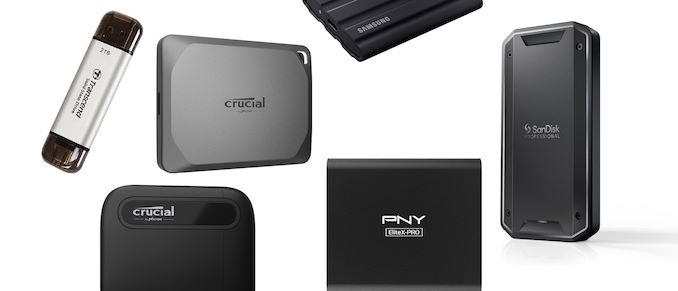
Once the domain of external, bus-powered hard drives, these days the market for external storage has been almost completely consumed by portable SSDs. Rapid technological advancements in NAND flash technology (including the advent of 3D NAND) has allowed their capacity to eclipse 2.5-inch HDDs, all the while multiple improvements in host interface speeds (such as the move from USB 2.0 to 3.0, and onwards to 3.2 Gen 2 / Gen 2x2 / USB4) has made portable SSDs faster and more reliable than the hard drives they replace. All of which has helped to make portable SSDs the go-to solution for external storage, both big and small. For our latest storage buyer's guide, we've rounded up some of the best portable SSDs we've looked at in...
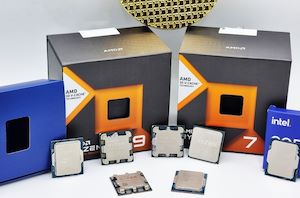
Best CPUs for Gaming: February 2024
As the first quarter of 2024 is already well underway, there's not been much in the way of launches since last year. Of particular note is AMD's launch of...
35 by Gavin Bonshor on 2/2/2024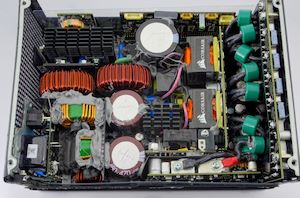
Best PC Power Supplies: Cyber Monday 2023
Now that you've picked out your CPU, it's time to start picking out the rest of your system components. And perhaps the most humble but overlooked of these components...
6 by E. Fylladitakis on 11/23/2023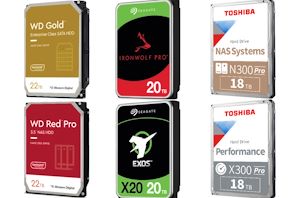
Best Internal Hard Drives: Holiday 2023
Data storage requirements have kept increasing over the last several years. SSDs have taken over the role of the primary drive in most computing systems. However, when it comes...
21 by Ganesh T S on 11/23/2023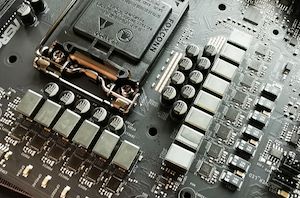
Best Intel Motherboards: Holiday 2022
Since we posted our previous motherboard guides, there has been a couple of notable processor launches. Perhaps one of the most impressive of the aforementioned launches is Intel's 13th...
4 by Gavin Bonshor on 12/12/2022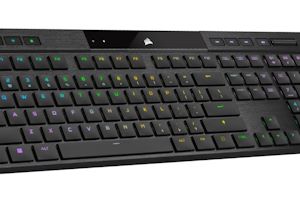
Best Mechanical Keyboards: Holiday 2022
Continuing our run of holiday buyers' guides, today we're taking a look at peripherals. Considering that a PC’s peripherals can easily outlive the main system’s components and usually stay...
2 by E. Fylladitakis on 11/25/2022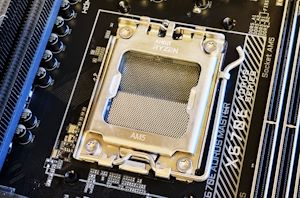
Best AMD Motherboards: Holiday 2022
It has been a busy couple of months for both Intel and AMD, as well as their partner motherboard manufacturers. The release of AMD's latest Ryzen 7000 series processors...
13 by Gavin Bonshor on 11/3/2022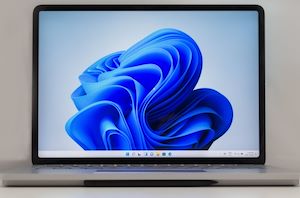
Best Laptops: Holiday 2021
With 2021 coming to a close, it is time again to look back at the laptop market. Despite bumps from the COVID pandemic, the laptop ecosystem continues to flourish...
26 by Brett Howse on 12/1/2021
Best Android Phones: November 2021
We’re nearing the end of the year and the holiday season, and all relevant devices for 2021 have seen their releases, and we’re entering a period of quiet before...
23 by Andrei Frumusanu on 11/19/2021
Best CPUs for Workstations: June 2021
Sometimes choosing a CPU is hard. So we've got you covered. In our CPU Guides, we give you our pick of some of the best processors available, supplying data...
55 by Dr. Ian Cutress on 6/10/2021
Best SSDs: May 2021
A solid state drive is often the most important component for making a PC feel fast and responsive; any PC still using a mechanical hard drive as its primary...
21 by Billy Tallis on 5/14/2021
Best Gaming Laptops: Holiday 2020
Along with our quarterly laptop guide, near the end of every year we also like to take a look at the state of the gaming laptop market. With a...
8 by Brett Howse on 11/25/2020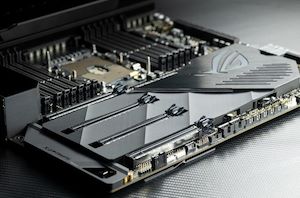
Best Motherboards: Q1 2019
We're once again back with our quarterly look at the PC motherboard market. For the first quarter of this year there has been a lot of buzz around impending...
0 by Gavin Bonshor on 3/14/2019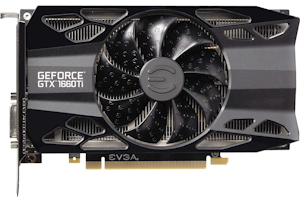
Best Video Cards for Gaming: Q1 2019
For gaming PCs that push the pretty pixels on the screens, the video card is the most important component. And given the sheer amount of custom options, choosing the...
19 by Nate Oh on 3/11/2019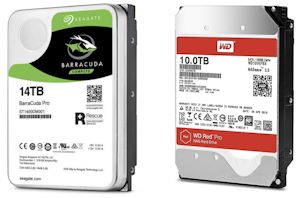
Best Consumer Hard Drives: Holiday 2018
Data storage requirements have kept increasing over the last several years. While SSDs have taken over the role of the primary drive in most computing systems, hard drives continue...
0 by Ganesh T S on 11/15/2018
Best CPUs for Gaming: Holiday 2018
Sometimes choosing a CPU is hard. So we've got you covered. In our CPU Guides, we give you our pick of some of the best processors available, supplying data...
0 by Ian Cutress on 10/24/2018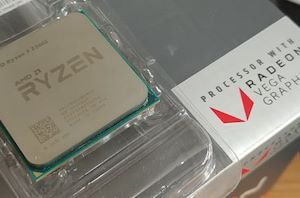
Best CPUs for Gaming: Q3 2018
In our series of Best CPU guides, here’s the latest update to our recommended Gaming CPUs list. All numbers in the text are updated to reflect pricing at the...
1 by Ian Cutress on 6/19/2018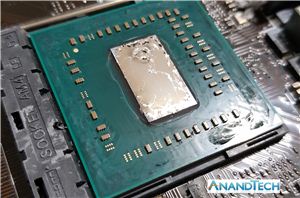
Delidding The AMD Ryzen 5 2400G APU: How To Guide and Results
Delidding is a process with the aim being to reduce CPU core temperatures on processors with a less-than-ideal thermal interface between the silicon and headspreader. The benefits of delidding...
73 by Gavin Bonshor on 5/10/2018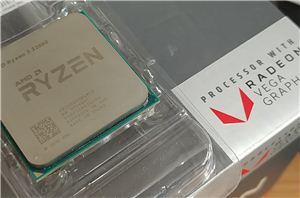
Overclocking The AMD Ryzen APUs: Guide and Results
With AMD’s new launch of Raven Ridge APUs, the Ryzen 3 2200G ($99) and Ryzen 5 2400G ($169), AMD holds the current integrated graphics apex when directly compared against...
64 by Ian Cutress & Gavin Bonshor on 4/16/2018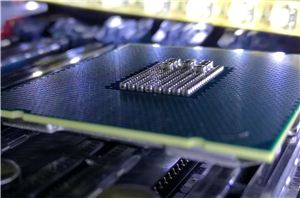
Best CPUs: August 2017
Our newest CPU Guide can be found here: https://www.anandtech.com/show/9793/best-cpus Best CPUs, August 2017 Sometimes choosing a CPU is hard. So we've got you covered. In our CPU Guides, we give...
0 by Ian Cutress on 8/30/2017
 Facebook
 Twitter
 RSS
RSS


